

Wednesday, July 15, 2015
Have you ever:
- lost emails in a computer crash?
- found it difficult to share emails when working in multiple locations or on multiple computers?
- had to call in the experts to migrate old emails to new computer?
- had to share a single email account between several people?
IMAP email is the answer.
A simple way to understand the advantages of IMAP email is to compare it to standard POP3 email.
Features of POP3 Email Model:
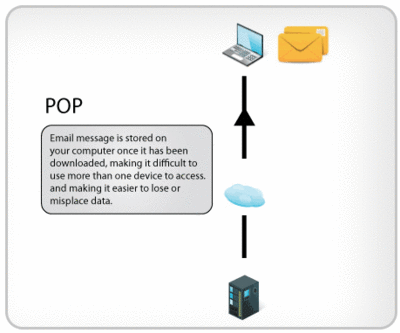 The standard features of POP3 include the following:
-
Your PC connects to the mail server and downloads the mail down to its mail client (e.g. Outlook, Outlook Express, Thunderbird, etc).
-
Note that only emails within the inbox will be downloaded to the local PC. Emails stored in other folders will not be downloaded unless manually dragged into the inbox first before download
-
The default setting for email clients is download emails down to the local PC, then remove the copy held on the mail server. This setting may be overridden that keeps a copy of emails on the mail server for X number of days. But the storage space provisioned in basic hosting plans is small so accumulating mail on the server is not a suggested practice as eventually the mailbox will fill up and begin to bounce mail once full
-
While emails have not yet been downloaded to the local PC, they will held on the mail server (and if included in your plan, may be accessible through an authenticated webmail email client such as Horde or RoundCube)
-
Once emails are downloaded to the local PC, the copy will be removed from the mail server. This means the local PC will hold the only copy of the email. Therefore backups of email become the responsibility of the PC user (or assigned third party)
-
Emails under POP3 are only accessed by a single person tied to single PC. This is a limitation of POP3 and this technique is to minimise the issue of downloaded emails being scattered across multiple machines
-
POP3 mailboxes tend to be small in size. As such, the hosting plan costs are low but features are limited
- Disaster could be anything from office damage to hardware failure / virus damage / operating system failure. Recovery from disaster is reliant on the local PC having up to date backups. Without backups, recovery is basically impossible (or best case very expensive to have your hard drive recovered).
Features and Advantages of IMAP email:
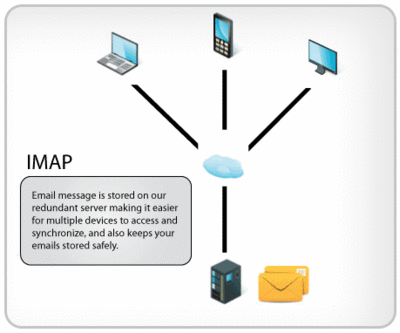 IMAP email is different and offers many advantages to POP3 email:
-
Accounts setup under IMAP deliver email using a live synchronisation process. As such, emails are not needed to be downloaded to the local PC. This can be synchronised to any authenticated email client application
-
As emails under IMAP are held continuously on the server, email backups are included. Emails only get removed from the server at the discretion of the email address owner
-
Certain email clients (e.g. Thunderbird) can be configured to maintain a persistent offline copy of all emails on your local machine. This means you have a copy even if internet access is not available.
-
Keeping your emails on the server protects your copies email from local machine failure and offers easier migration path to new hardware in the face of disaster or if just upgrading. The times to recover from disaster (e.g. hardware failure / virus damage / operating system failure / hardware migration) is just a matter of the time to re-sync your account on a new hardware device
-
Synchronisation of all folders (inbox, sent, and any newly created or existing folders) and individual emails rather than just inbox as in POP3. Emails and folders are sync'd on all authenticated devices at all times
-
IMAP also supports having multiple people share mail boxes (such as a group sales or a group accounts). This centralises emails and opens the possibility of organisation-wide email search by keyword / keyphrase (and there is no scatter of emails under this model)
- IMAP accounts require incremental space to store the email on the mailserver, so incur fees for space usage. However, total monthly fees for storage, usage, automatic backup, and 24/7/365 monitoring under an IMAP offering could cost less than a single hour per month of onsite IT consulting fee running backups (under POP3 or MS Exchange)